Thursday, October 5, 2017

Information Free Email Tracker


https://www.free-email-tracker.com/


  •  Unlimited email tracking
  •  An email tracking dashboard
  •  Real time and SMS notifications
  •  Reminders
  •  Link tracking


Integrated into Gmail
No extra software!

Reliable cloud technology

Great reatings and reviews


All features are 100% free!

Integrated with Gmail
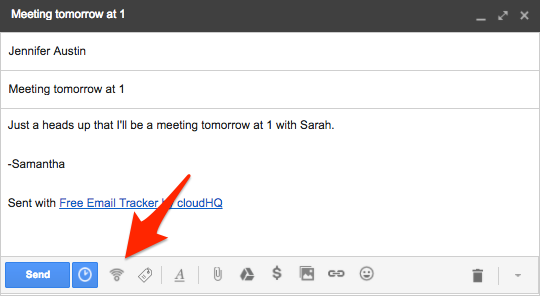


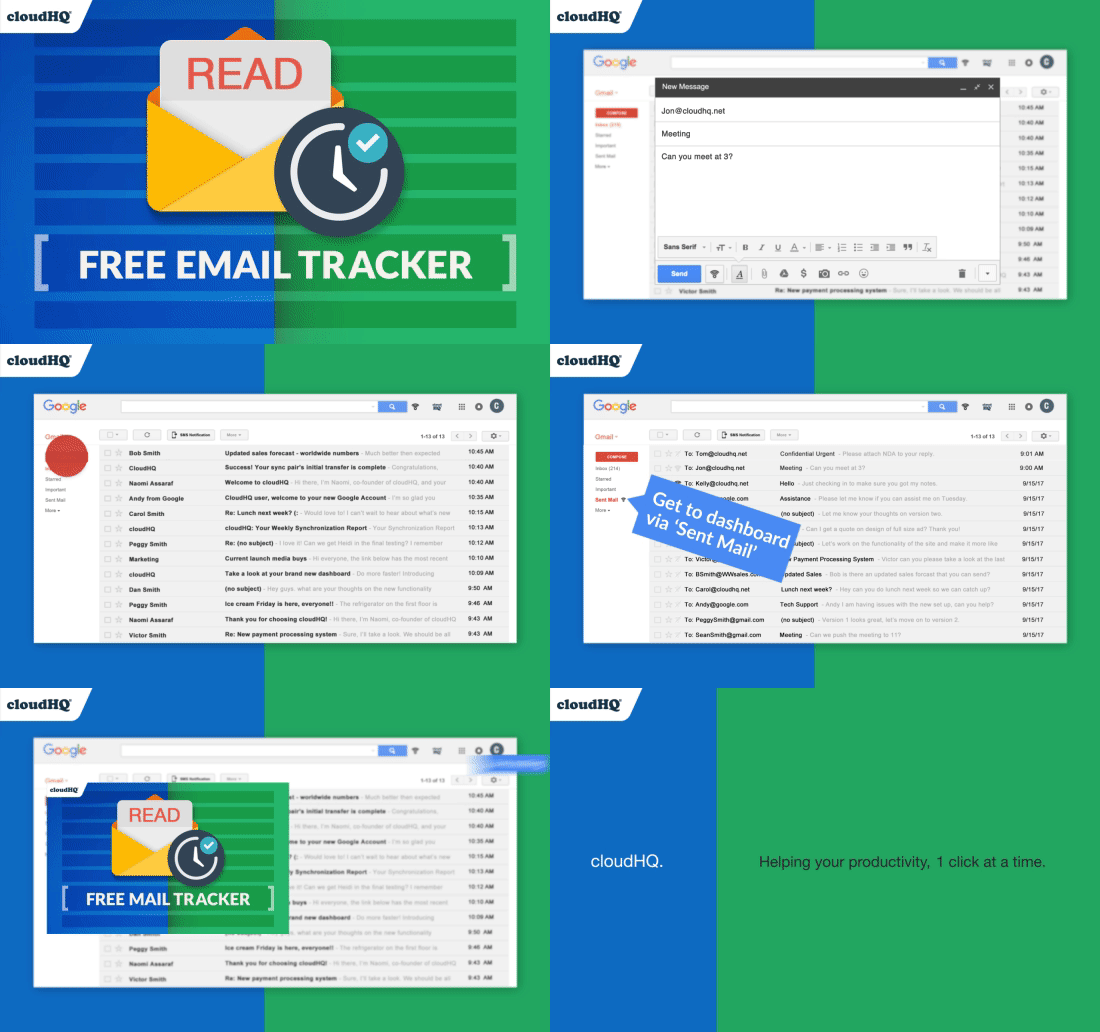
Free Email Tracker is fully integrated with your Gmail. There is no need to actively “turn on” tracking for individual emails. By default, all your emails will be tracked. To turn off tracking for an individual email, simply click the icon in the bottom of the compose message so it turns light gray.

Unlimited email tracking
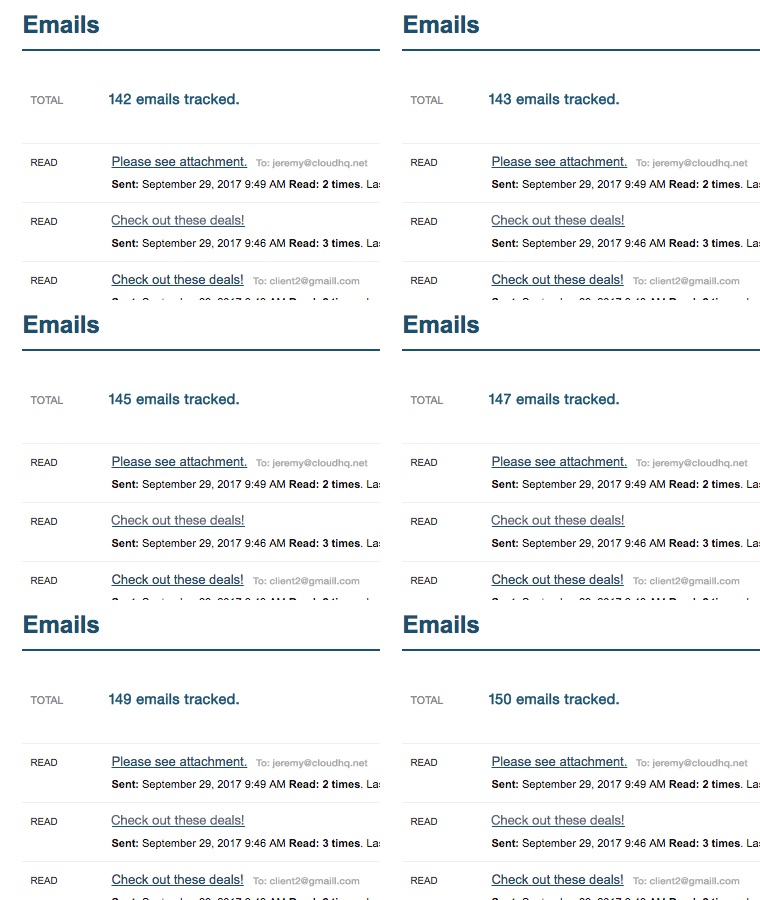


You have no limits when using our email tracker- whether you’re using the premium, or the free version. This way, you’ll be able to know exactly when a critical sales lead or customer has read your email, and you’ll always be able to take any necessary follow up actions. We spent a lot of time designing a great email tracking experience, and it includes never having to limit you so that you can soar to your fullest potential.

Unlimited link tracking
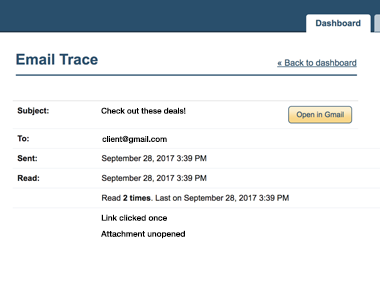

The unlimited link tracking feature is one of several email analytics tools that we offer for free. This tool allows you to know whether your recipient is interested in what you sent them, when you’re email tracking them. You can check when and how many times they opened your link, and be ready to follow up with the best information in hand. If they didn’t click on your link, you know they might not be interested in what you’re sending them.

Dashboard
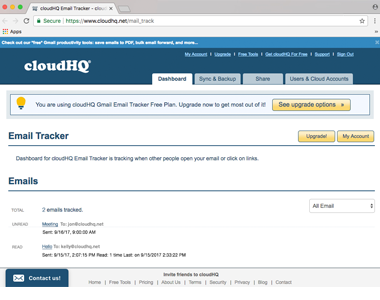

Do you need a high level overview dashboard to see whether or not your emails are being opened? This free dashboard functionality keeps a record of all your emails sent with Free Email Tracker. You can check the history of your tracked emails in one, convenient place. Filter all your messages that haven’t been opened, and you’ll be able to know what actions to take next. Click the “read emails” option, and you’ll know which of your contacts are taking you seriously.

Multiple Email Recipients Tracking
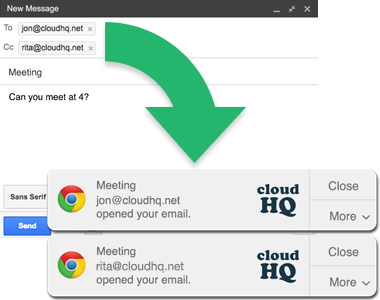


Free Email Tracker will also track multiple email recipients when you include more than one email address in your email. You can send your email with blind copies, copies, or multiple address in the “To” field, and still track if they opened your message, and clicked on any of your links.

Real-time Desktop Notifications
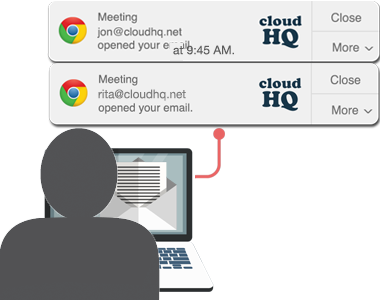


Desktop notifications for email tracking are designed to alert you in real-time as soon as your tracked messages have been opened while you’re on a desktop computer. They’ll pop-up from your taskbar just like Gmail’s new message alert. Because notifications are shown in real time, you’ll have the ultimate upper hand.

Text Notifications
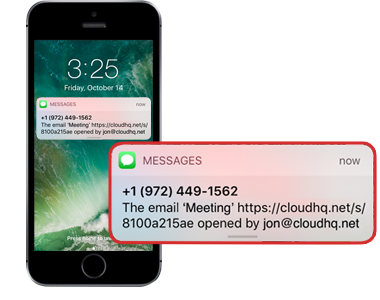


What if you’re not at your computer? Not to worry. Now, you can even setup SMS text notifications whenever your email is opened. This is a great option for your most important messages, so that you can take action immediately after your email recipient reads it. This is a must-have feature for any sales professional and immensely ups your sales game

Tracking History
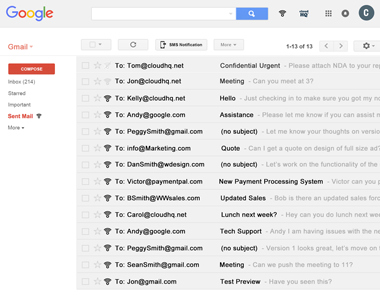


You can check the history of your tracked emails in one place. Filter all the messages that haven’t been opened and know what to do next. Click the “read emails” option and make sure you know who are the contacts that opened what you sent. Using the filtering, you can see a full history of your communications with specific prospects as well as their history of how they interact with your messages.

Reminders
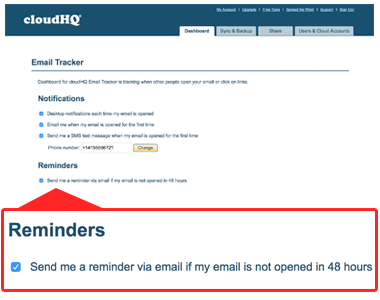


With reminders, you can receive a notification if your email goes unopened for 48 hours. This gives you a heads up that the email you're using didn’t reach your intended recipient. It could be that the recipient is busy, is away, or worse, is ignoring your emails. Whatever the case, an email notification will alert you that your message has NOT been read. This knowledge lets you take the next appropriate steps because your current email recipient may not be your best point of contact.

Who Uses Tracking?

Sales

Receive a notification when your proposal is viewed, and you’ll know exactly when to follow up. Know if your email is read and not responded to, or never reaches the recipient.

Support

Know if your support message has resolved an issue or if the contact hasn’t yet read your helpful message.

Marketing

Send test emails and track which emails are being opened and which are converting - and see how effective your marketing materials actually are.

Recruiters


Respond to candidates at the right time to nurture their interest and without appearing overzealous by replying too often.


Project Managers

Ensure that all project stakeholders read your important emails - and quickly follow up if they are not read 

Lawyers

Ensure that your clients read your email requesting needed documents


Tuesday, April 25, 2017

Google sites information

(( INSPIRE, LEARN, SHARE )) 


(( Every Moment Is an Opportunity ))


Image result for Google Sites

Website sites.google.com

Use Sites to :
  • Create Company website.
  • Create Mobile Responsive cv
  • Share info on a secure company intranet.
  • Create Online Training center website for work team.
  • Collaborate on a team project.
  • Stay connected with family members.
  • Plan club meetings and activities

Google Sites is best understood as a way to build collaborative websites and intranets that integrate Google Apps, Docs, Drive, Calendar, Maps, Forms and more.

Google Sites has lots of collaboration tools built-in— such as permissions and collaborative documents. This makes it a natural intranet builder. To take advantage of this your organization should already use Google Apps. 

A significantly updated and streamlined version of Google Sites goes live for G Suite customers in November 2016. 

Some things about Google Sites haven't changed. Sites is still a tool to create a basic website. It remains one of the core G Suite apps. 

You can still collaborate with other people — editors you choose — to make your site. And you can still connect your site to Google Analytics to understand how visitors navigate pages on your Site.
Here are five things about the more modern, contemporary-looking tool.

Screenshot of Google Sites preview mode shown in tablet and phone formats

Screenshot of Google Sites preview mode shown in tablet and phone formats

With the late 2016 update, your Google Sites layout now reformats for a desktop, tablet, or phone screen.

1. You can create web pages that display nicely on any device.

Google made one choice for you: a one-column, no-sidebar design. Additionally, you can choose between two navigation menu locations (either a top menu or a side menu that appears when you select a three-line menu icon) and among three page header types (a large banner, banner, or title-only).


Screenshot of menu options to add content to a Google Site

Insert content from Google Drive — and other sources — into your site.


2. You can insert content from Google Drive and other apps

As you would expect, you can add, edit, and format text and insert, crop, and resize images on your site.

More important, you can insert content from Google Drive into your site. Insert any of your Google Docs, Sheets, Slides, Forms, Charts, Videos, or Images from Google Drive into a section of your site. And you can still insert Google Calendars, Maps, and YouTube videos, too. All of these show a preview of the file, with the full content viewable after a visitor selects the file.


3. You can embed some external content

Embed some external content Sites will add an image, a title, and a description. You can choose to display or hide any of these. In my tests, Sites added content for most posts and articles successfully. When an embed doesn't work, Sites shows a link to the content. For a Tweet, Google Sites shows a link, since neither a direct link nor an embed code to a Tweet otherwise works.

Screenshot of section position and background color controls.

Screenshot of section position and background color controls.
Adjust section backgrounds — or move sections around — with controls that display when you need them.

4. You can customize and move content sections

You can move content sections up or down your page: Select the two lines of five dots, then move the section around. Within a content section, you can resize content frames to display more (or less) of a Google Doc, for example, or to center an image or section of text. Sites provides some smartly arranged gridlines and snaps your content borders to those lines — this helps your site maintain a visually coherent layout.

You can customize the background of a content section to draw visual attention to an area. You can choose a basic white, gray, or black background or add an image. After you add a background image to a section, Sites adjusts the image to improve the visibility of your content. (You can turn this auto-adjustment off, if you prefer.)


Screenshot of Google Sites publishing visibility settings
Share your site with the people in your organization or with the world.


5. You can publish your site to your organization or to the world

As of early November 2016, Sites offers two sharing settings when you publish. You can choose to make your site available to everyone in your organization or publish it for anyone to see. That's a significant change from the page-level permissions available in classic Google Sites. (Page-level permissions allowed you to control access to specific site pages but also produced complicated access controls.)


Google Sites For Virtual Training Hub


https://www.youtube.com/watch?v=xvFmb7igJw8


Need to onboard employees quickly and across multiple offices? The Transformation Gallery (https://goo.gl/RUXkx0) is here to help. You can check out the specific card on this process here: https://goo.gl/oqGycT

To train people based in different locations, create a one-stop training hub using Google Sites. Store all onboarding tasks, organization policies, training videos, and other documents in Drive. Then, embed the files in the training website to create a self-service training portal and share it with all new employees.

Within Forms, you can also have employees or volunteers upload their documents. For this example, Drea Delivers drivers are able to upload a photo of their license, insurance card, and a photo of their vehicle.

Have ideas for the Transformation Gallery? Share them here: https://docs.google.com/a/google.com/...


The verdict

After spending some time with Sites during the beta period, I think it offers an elegant way to publish text, images, and content from Google Drive and other Google sources to the web. If you use G Suite, the new Google Sites is one of the fastest — and simplest — ways to build a website at work.


Google Sites Information
Google Sites is a structured wiki- and Web page-creation tool offered by Google as part of the G Suite productivity suite. The goal of Google Sites is for anyone to be able to create a team-oriented site where multiple people can collaborate and share files.

History
Google Sites started out as JotSpot, the name and sole product of a software company that offered enterprise social software. It was targeted mainly at small-sized and medium-sized businesses. The company was founded by Joe Kraus and Graham Spencer, co-founders of Excite.

In February 2006, JotSpot was named part of Business 2.0, "Next Net 25", and in May 2006, it was honored as one of InfoWorld's "15 Start-ups to Watch". In October 2006, JotSpot was acquired by Google. Google announced a prolonged data transition of webpages created using Google Page Creator (also known as "Google Pages") to Google Sites servers in 2007. On February 28, 2008, Google Sites was unveiled using the JotSpot technology. The service was free, but users needed a domain name, which Google offered for $10. However, as of May 21, 2008, Google Sites became available for free, separately from Google Apps, and without the need for a domain.

In June 2016, Google introduced a complete rebuild of the Google Sites platform.[7] However, Google Spaces was shut down on April 17th, 2017

Features
Custom Domain Name Mapping – Owners of both personal Google accounts and Google Apps for Business accounts are allowed to map their Google Site to a custom domain name. One must own the domain and have access to change the CNAME records.
Multi-tier Permissions and Accessibility – There are three levels of permissions within Google Sites: Owner, Editor and Viewer. Owners have full permissions to modify design and content of the entire Google Site, whereas editors cannot change the design of the site. Viewers can only view the site and are not permitted to make any changes to text or otherwise.
Extension
Gadgets – XML modules that can be embedded in a Site and may contain custom CSS and JavaScript. Gadgets achieve two purposes:
Separation or Abstraction – the custom code can be abstracted to a distinct file
Reuse – the same gadget can be reused by multiple sites as it is published publicly
HTML Box – allows embedding custom HTML, CSS and JavaScript.

====================================================================
If you find this information useful do send us your comments.

Your feedback is valuable .

Do Share this information as it may be useful to others.

If you need any solutions information or have any requirements or questions do send us your email. Our Team would like to provide our assistance anytime.

Email : usefullresource@gmail.com

https://chat.whatsapp.com/F0btSs4HWwyH5e6tUbOiEu


(( THANK YOU )) 


(( INSPIRE, LEARN, SHARE )) 


(( Every Moment Is an Opportunity ))


Friday, September 9, 2016

Periscope App Information : easiest way to live stream from your phone for free


Image result for Periscope

https://www.periscope.tv/

Periscope is the easiest way to live stream from your phone. Periscope enables you to share what's happening around you — with the whole world or just a few friends — as it happens LIVE.

Periscope is available for iOS and Android. 

What are hearts?

Hearts are a way for you to share your support and enthusiasm with a broadcaster and fellow viewers. If you like what you're seeing, just tap the screen to give the broadcaster a heart!

Hearts are only available in public broadcasts and replays. Hearts given in private broadcasts will not be counted towards your overall heart count. 

Occasionally, we’ll release seasonal or event-specific hearts! If you want to join in, just add the designated hashtag to the title of your broadcast. Also note that if someone takes a screenshot while you're broadcasting, a camera icon will appear on the screen alongside the hearts.


Periscope is a live video streaming app for iOS and Android developed by Kayvon Beykpour and Joe Bernstein and acquired by Twitter before launch in 2015.

They started the company in February 2014, under the name Bounty. They raised $1.5 million from Founder Collective, Scott Belsky, Maveron, Google Ventures, Menlo Ventures, Bessemer, Stanford – StartX and Sam Shank in April 2014.


Periscope was acquired January 2015 by Twitter before the product had been publicly launched. One investor source says the acquisition amount was "sizeable", above $50 million. Another says it fell between $75 and $100 million.

Periscope was launched on March 26, 2015. Later, on May 26, 2015, Periscope was released for Android.

On August 12, 2015, Periscope announced that it had surpassed 10 million accounts, four months after it was launched. At the same time, the company noted that the amount of video being watched had reached a level of "40 years per day".On December 9, 2015, Apple named Periscope as the iPhone App of the Year.

On January 26, 2016, the company released an update that allows users to stream live from GoPro.

Service
Periscope users have the option to tweet out a link to their Live Stream. They can also choose whether or not to make their video public or viewable to only certain users.Scopes can be LBB (Limited by Broadcaster) which disallows comments.
Periscope allows viewers to send "hearts" to the broadcaster by tapping on the mobile screen as a form of appreciation. The maximum number of users that can be followed is 8,000.
broadcast live in landscape view.


Monday, May 30, 2016

Information about PortableApps


Set your PC free.  Your favorite apps, carried on a portable or cloud drive, work on PCs everywhere you go.
PortableApps.com is a website offering many free, commonly used Windows applications that have been specially packaged for portability. These portable applications can be used from removable media such as USB flash drives. User data is stored in a subfolder, allowing the user to upgrade or move the software without affecting the data.To remove the software, a user can simply delete the main folder.
The site was founded by John T. Haller and includes contributions from over 100 people, including developers, designers and translators.


All Your Favorite Apps, Everywhere

PortableApps.com lets you carry all your favorite apps on a portable device or cloud drive and use them on any PC. Your browser with your bookmarks and extensions, your office suite, your photo editor, your music collection, your games, your development tools and more. Everything you need for work and play with you on every PC you use. Work, home, school, visiting family and friends, even while traveling. And everything stays on your drive, too. Now, every PC becomes your PC.


Portable App Directory™ - Built-In App Store and Updater

The PortableApps.com Platform has an app store built right in, so you can find and install the apps you want with just a few clicks. List all the available apps by category, title, newest releases or recently updated. You can find your favorite web browser, popular games, handy utilities, educational tools, image editors, chat programs and more. There are hundreds of free apps available with new apps added every week. With no download limit, you can download one app or one hundred.


History

The project started out of a portable version of Mozilla Firefox in March 2004. John T. Haller then expanded the project to include Mozilla Thunderbird and OpenOffice.org. Soon the open source group of portable programs outgrew Haller's personal website and he moved it to a community site, PortableApps.com. The site currently hosts various projects created by forum members. The site is also used for bug reporting and suggestions. Some PortableApps distributions are hosted on SourceForge.

Format

Application installers designed for use with the PortableApps.com menu follow the convention of using filenames ending in a.paf.exe extension, include HTML documentation and store data in the Data directory, allowing for simple backup of data with the PortableApps.com Backup utility. Installers intended for use with the PortableApps.com menu should be NSIS installers, generated with the PortableApps.com Installer, but can be compressed archives with self extractors, or any installer executable.
The majority of applications can run on most computers with Windows 2000 or later.Many apps will also run under Wine on Unix-like operating systems. Older versions of many apps support Windows 95/98/Me, but no new releases support these systems.

PortableApps.com Launcher

The PortableApps.com Launcher (also known as PAL) is used to make applications portable by handling path redirection, environment variable changes, file and directory movement, configuration file path updates and similar changes, as configured.The PortableApps.com Launcher allows software to be made portable without the need to write custom code or make changes to the base application. While some of the software packages released on PortableApps.com currently still contain their own custom launchers, the PortableApps.com Launcher is used in all new apps released.The installers are made with Nullsoft Scriptable Install System.

PortableApps.com Platform

The PortableApps.com Platform is not required to run portable apps, but it's available to provide a more integrated experience. Features include:
  • A menu of installed portable apps
  • Apps Directory to find and install new apps.
  • Search functions for your USB flash drive.
  • An updater to keep installed apps up to date
  • Portable Fonts
  • Backup tools

Fast


Download, install, and GO

Flexible

  • Make every PC feel like your own
  • Use your favorite software everywhere
  • Carry your bookmarks and settings
  • Edit your documents, photos and more

Free

  • Free. No time limits. No catch.
  • No registration required. Never was.
  • No adware. No spyware. No malware.
  • OSI Certified Open Source Software™.


Friday, November 20, 2015

INFORMATION GOOGLE CLOUD PRINT ONLINE WIRELESSLY PRINT FREE EASY TO USE SETUP FOR ALL


(( INSPIRE, LEARN, SHARE )) 


(( Every Moment Is an Opportunity ))


Information about GOOGLE CLOUD PRINT


Google Cloud Print


Print anywhere, from any device.

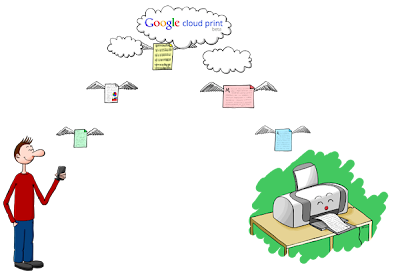
Google Cloud Print is a new technology that connects your printers to the web. Using Google Cloud Print, you can make your home and work printers available to you and anyone you choose, from the applications you use every day. Google Cloud Print works on your phone, tablet, Chromebook, PC, and any other web-connected device you want to print from.

http://www.google.com/cloudprint/

Print Anywhere

Google Cloud Print works with all printers, but for the best printing experience we recommend that you use a Cloud Ready printer. You can connect a printer to your Google Cloud Print account in seconds, and immediately start printing to it.


Print Anything


Any type of application, on any web-connected device, can use Google Cloud Print. For a list of apps that will allow you to print to Google Cloud Print at home, at work, or on the go, see here. 

Share Your Printers

Imagine sharing your printer with anyone you choose, as easily as you might share a Google Docs document. With Google Cloud Print, you can securely share printers with a single click, directly from your Google account. Managing printers and print jobs is equally easy.

Classic printers

Classic Printers connect to the Internet through a laptop or PC, and register with Google Cloud Print using a feature of Google Chrome.

Before connecting your classic printer, confirm if you have:
Then, follow the steps below to enable the Google Cloud Print connector:
  1. Open Google Chrome.
  2. In a new tab, open chrome://devices 
  3. You’ll see a list of devices already registered with Google Cloud Print, and new devices available on the network.
  4. Under "Classic printers,” click Add printers.
  5. You'll see a confirmation that Google Cloud Print has been enabled. To learn more, click Manage your printers.
To connect classic printers in a business or school environment, use the Cloud Print Connector service onWindows or Linux.


(( THANK YOU )) 


(( INSPIRE, LEARN, SHARE )) 


(( Every Moment Is an Opportunity ))