Tuesday, September 11, 2018

Use Google Lens to Save Contact Info from Business Cards

Lens product logo color 720px (2).png

Business cards are a great way to keep tabs on the contacts we network with. So why shouldn't our smartphones make them even more useful? Enter Google Lens, which will help you save, search, and expand on the contact information found on all of the business cards you've collected.

Originally an exclusive feature of the Pixel 2 and Pixel 2 XL, Google Lens now comes standard with the Google Photos app for Android devices (just make sure to download the latest update). That means no additional apps to download and sign in to — all you need to do to get started is to take a picture of a business card whose owner you'd like to save as a contact.


Step 1
Scan a Business Card with Google Lens
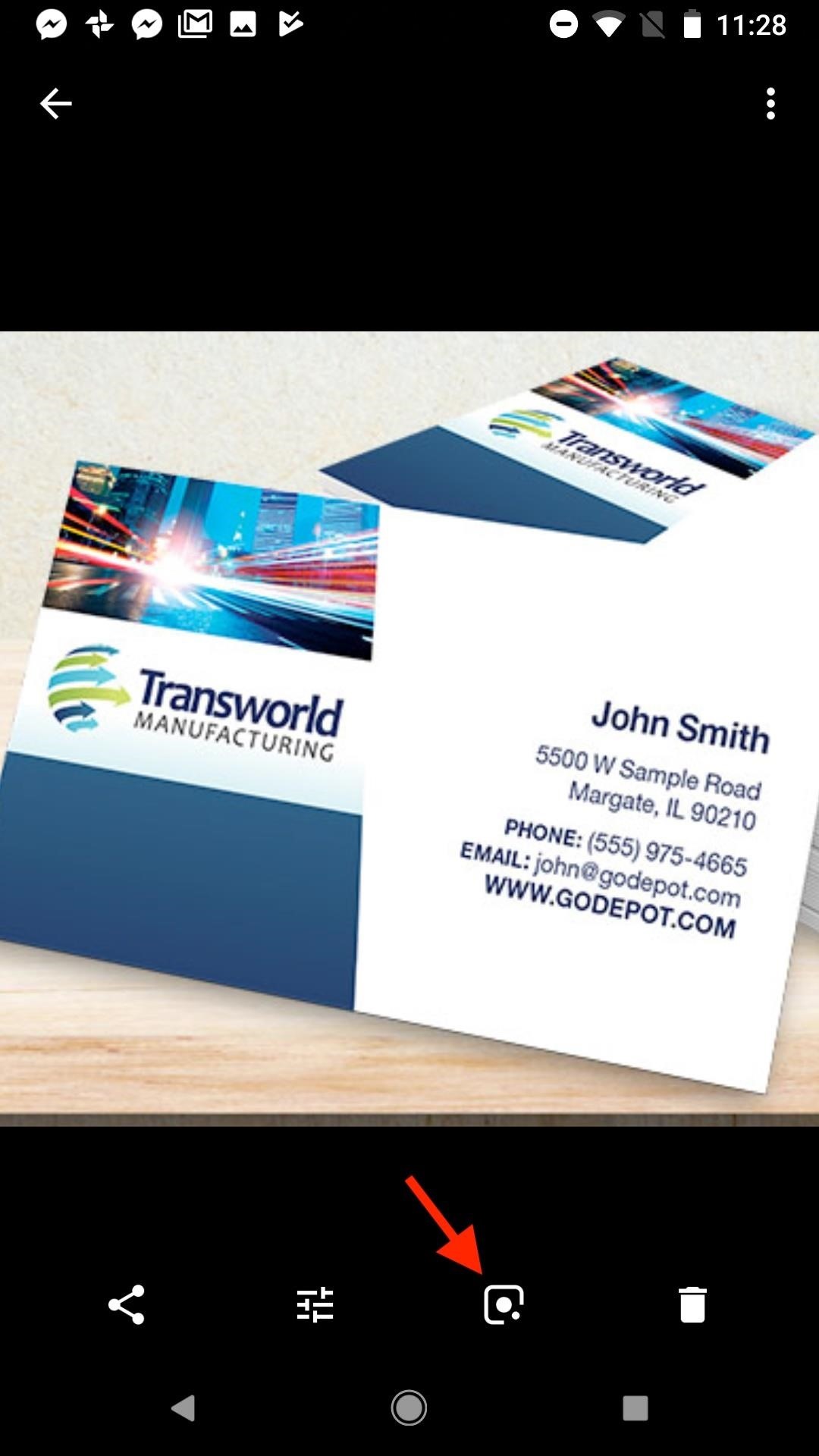


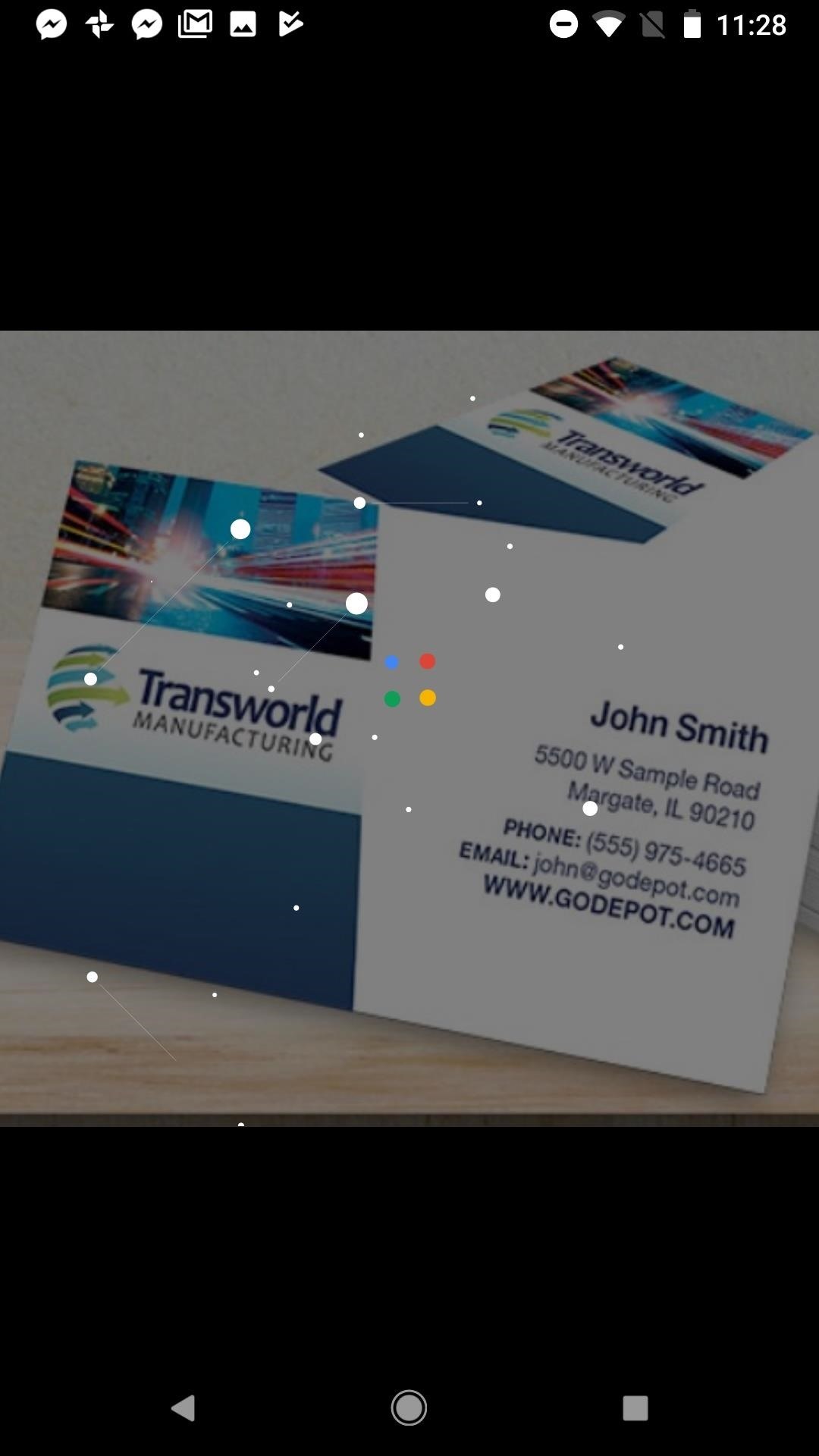
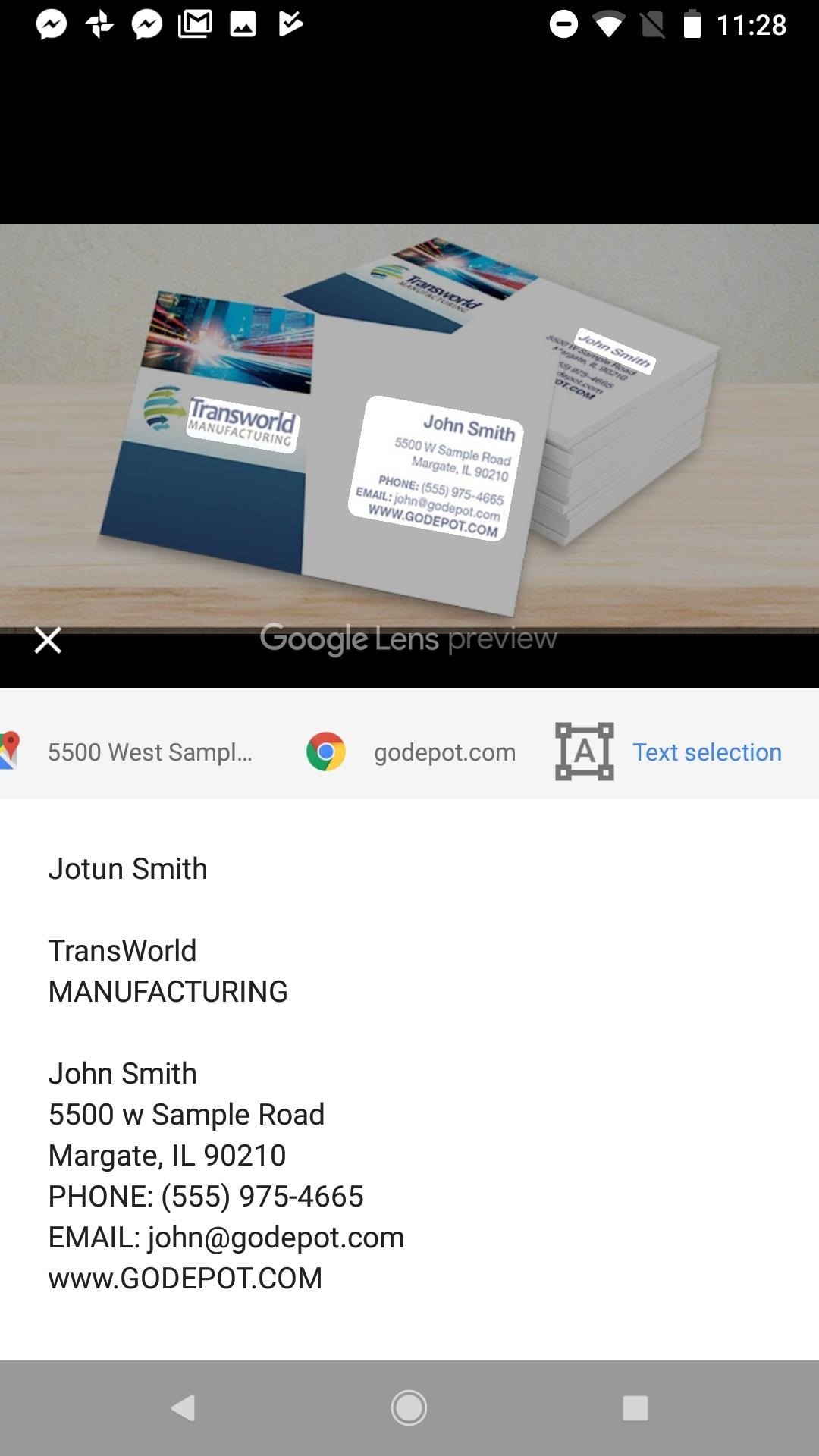
Once you have a picture of the business card in question, open it in Photos. Tap the Google Lens button in the bottom row of the app (to the left of the "Delete" trashcan key). Google Lens will then scan your photo with a cool animation before loading up all the information it was able to obtain from the card.


Step 2

Add a New Contact


By default, Google Lens will key in on the contact information and lay out the person's name, email, address, and any other contact information it can process. You can quickly turn that information into a contact in your phone by tapping "Add contact" at the bottom of the display.

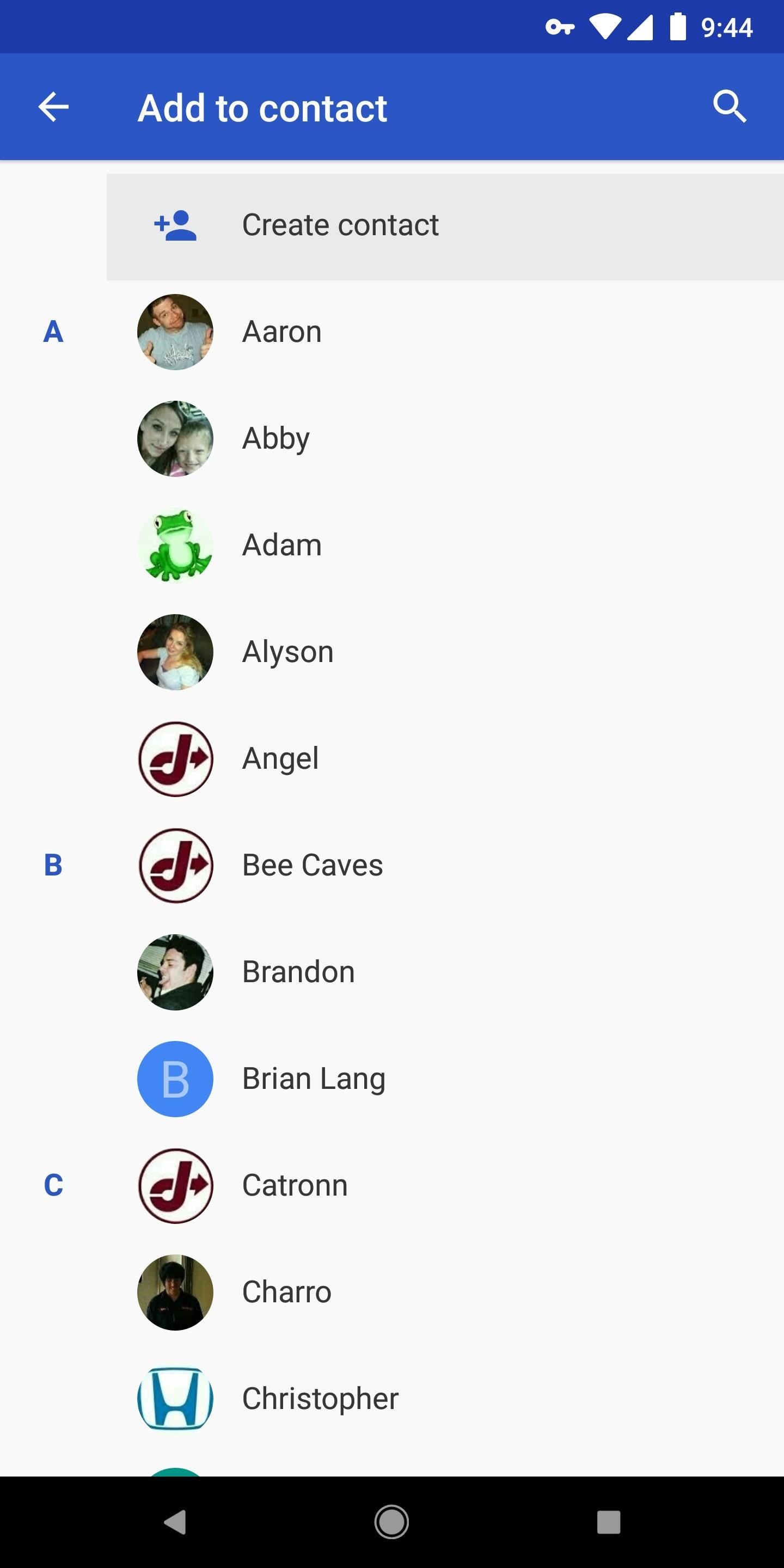
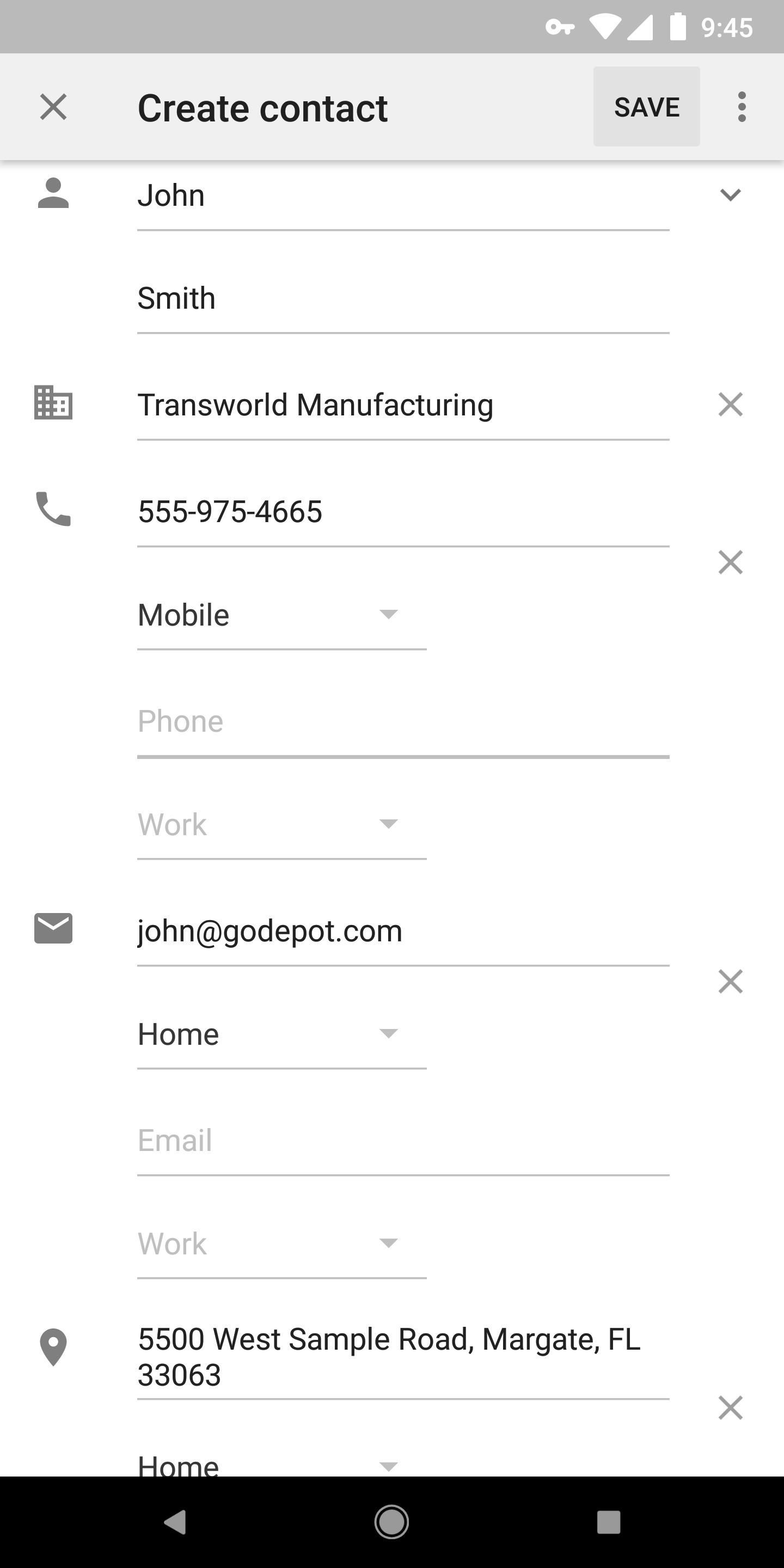
From there, your Contacts app will pop up. The interface will vary depending on what type of phone you're using, but for most, just tap "Create contact" or "New contact" to load up the information Google Lens found into a new contact. From there, the pertinent fields should already be filled out, but you can tweak the info or add to it if you'd like. When you're satisfied, make sure to tap the "Save" button to finalize your work.


Step 3
Interact with the Card in Other Ways (Optional)

That's not all you can do here, however. Google will break up the information it sees into different cards for a more focused look at each. The exact options you see will depend on the information Google Lens found on the business card you scanned.

In most cases, you can tap the "Gmail" icon to view this person's email address, then you can tap "Send email" to send them an email, "Add contact" to turn the address into a contact, "Copy text" to copy the email address, or "Share" to share the email address to another app or service on your phone.

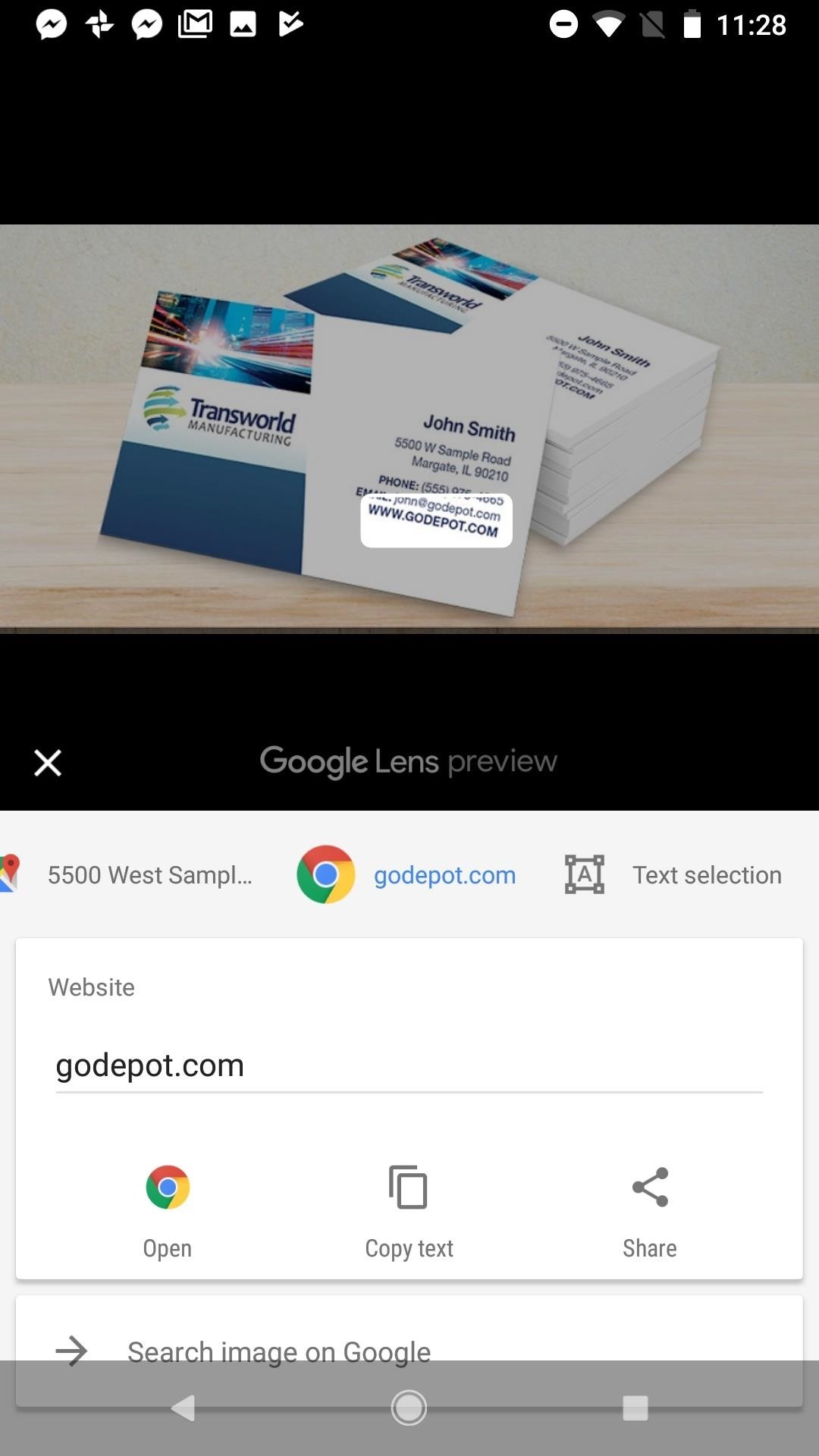
Tap on the Google Maps card to view the address listed on the card. You can tap "Open" to launch the address in Google Maps, "Copy Text" to copy the address to the clipboard, or "Share" to share the address with others.

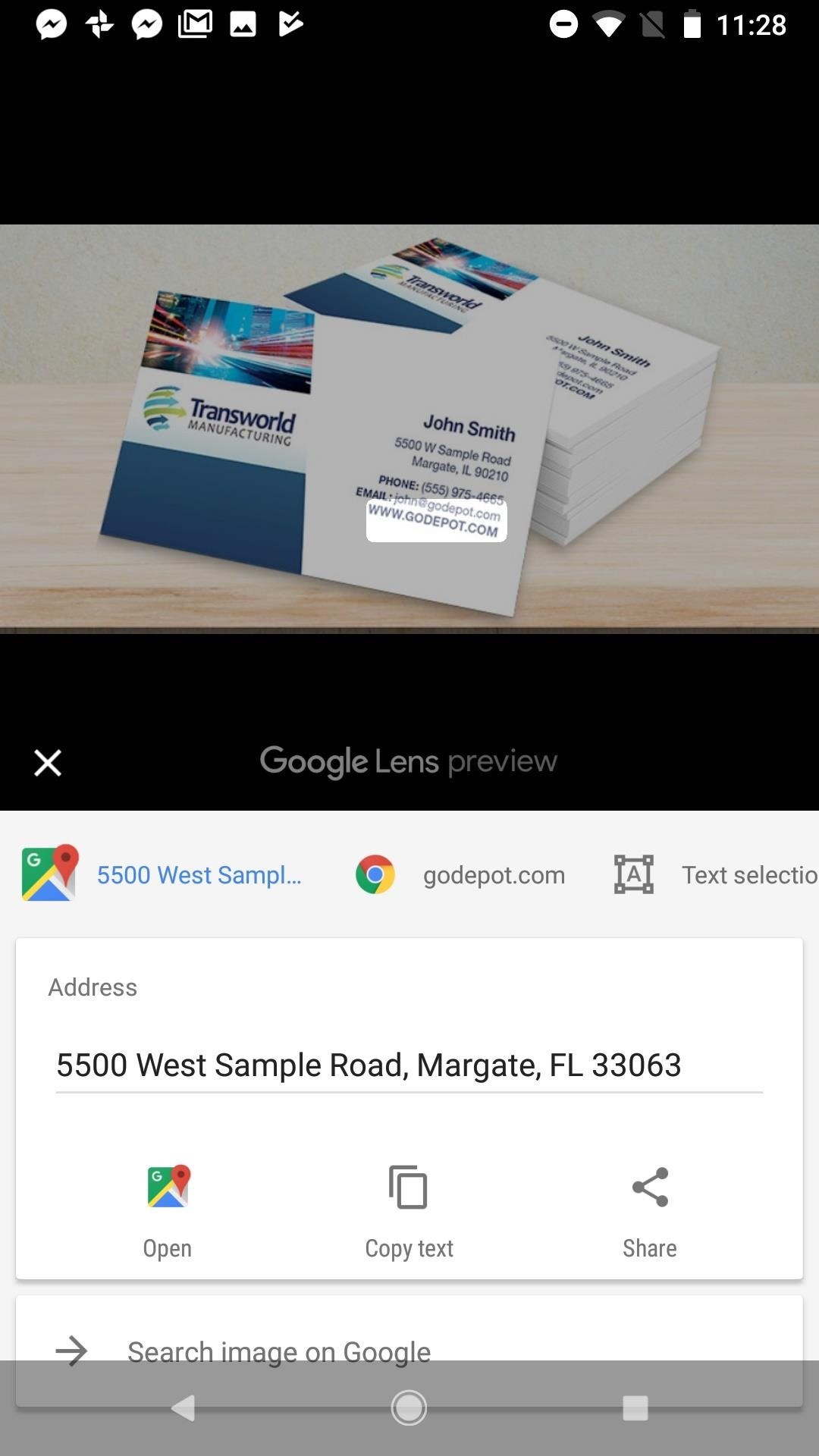


You can tap the "Chrome" icon to view the website the contact has on their card. Tap "Open" to jump into the link in Chrome, "Copy Text" to copy the site's address, or "Share" to send the website to friends.

Finally, "Text selection" takes all text it can detect in the photo and lays it out for you to read. It might not be useful in all situations, but in a busy image, having the important bits listed out in plain text can be a big help. From there, you can long-press words or phrases to copy them to your clipboard.

Friday, March 23, 2018

Free POS Software and Сustomer Loyalty Program Loyverse free POS (Point Of Sale System)

Loyverse Free POS. Point of sale


Free POS Software and Сustomer Loyalty Program
https://loyverse.com/

Free point of sale system for small stores, coffee shops, beauty salons & more
 Loyverse free POS (Point Of Sale System)

Manage your store and sales from a smartphone or tablet — increase your small business profit by making your sales easy and fast with Loyverse POS, manage inventory, visualize sales analytics, acquire, retain, engage your customers and multiply their average spend.

Use free
Install Loyverse software on your smartphone or tablet, start your sales, sign up customers.

Manage smart
Manage one or multiple stores from the same account. Your analytics are in the cloud, always with you.

Grow strong
Increase customer retention, run your own loyalty program, boost your sales.

Loyverse Free POS Software Features

Loyverse POS Features new


Mobile Free POS
Sell from a smartphone or tablet
Loyverse Free POS works on iPhone, iPad, Android smartphone and tablet.

Printed or electronic receipts
Give the receipt to customers in a way they prefer: printed, sent to an email or through the Loyalty


Refunds
Refund the selected item or all items on the receipt.

Cash management
Track cash movement to reduce mistakes and staff manipulation.

Discounts
Apply discounts to the receipt or specific items.

Open tickets
Create, save and edit orders. Customers can pay when it's convenient.

Item modifiers
Modify orders easily. Choose add-ons to dishes or how they're prepared in one click.

Work offline
Make sales with weak or unstable internet. All data will be automatically synced once connection is restored.

Hardware
Supported hardware: receipt printer (Ethernet or Bluetooth), barcode scanner (Bluetooth or USB), cash drawer.

Multiple locations
Manage multiple stores under one account. Track your sales, inventory, employees and customers — everything you need to know in one place.

Credit card payments
Accept credit and debit cards using Loyverse POS integration with leading card processors.

Easy scanning
Scan barcodes on items during a sale with built-in rear camera of your mobile device (only for iOS).
Inventory Management

Items import
Quickly add thousands of items using the CSV-spreadsheets.

Track inventory
Track the stock of products and their components.

Low stock notifications
Receive daily notifications about low stock to make the necessary item orders in time.

Employee Management
Sales by employees
Track each employee performance and take informed business decisions.

Smart management
Information on the workload per hour allows for efficient managament of your staff.

Access rights
Manage access to sensitive information and functions.

Time clock
Employees can clock in/out and system calculates their total hours.

Sales Analytics
Sales trend
Track the sales growth or decline compared with the previous day, week, month and promptly react to changes.

Popular items
Sales by item analytics allows the best-selling items to be determined and therefore the right purchasing decisions can be made.

Shifts
Identify the cash lack at the end of the shift and track employees inaccuracy or manipulations.

Receipts history
Receipts history review allows you to monitor each transaction: sales, refunds, discounts.

Tax report
Browse reports on the tax amount needed to be paid and save time for their calculation.

Reports export
Export sales data to the spreadsheets for detailed analysis.

Loyalty Program
Customers database
Analyze the number of visits and the customer purchases amount, to identify your most loyal customers.

Points reward program
Motivate customers to make reccuring purchases, awarding them bonus points.

Notes about customers
Make notes about customers to remember each client's personal preferences and to provide the best service.

Customer Communication
Feedback
Customer app (Loyalty Ocean) allows visitors to leave private feedback. View messages and respond in real time.

Direct message marketing
Send free messages about promotions, events and sales to your customers' mobile app.

Customer display system
Display order information to your customers on a separate digital display simulataneously with thesale process.

Restaurant & Bar Features
Kitchen printers
Use kitchen printers at cafe or restaurant to inform cooking staff what to prepare from an order.

Kitchen display system
Get orders to kitchen automatically, faster and with less errors. Less paper, less mess. Save and go green.

Dining options
Note whether customers are dining in, taking their order out, or requesting delivery.

Predefined tickets
Predefined tickets allows you to quickly assign names to open tickets. For example, Table 1, Table 2, etc

Thursday, October 5, 2017

Information Free Email Tracker


https://www.free-email-tracker.com/


  •  Unlimited email tracking
  •  An email tracking dashboard
  •  Real time and SMS notifications
  •  Reminders
  •  Link tracking


Integrated into Gmail
No extra software!

Reliable cloud technology

Great reatings and reviews


All features are 100% free!

Integrated with Gmail


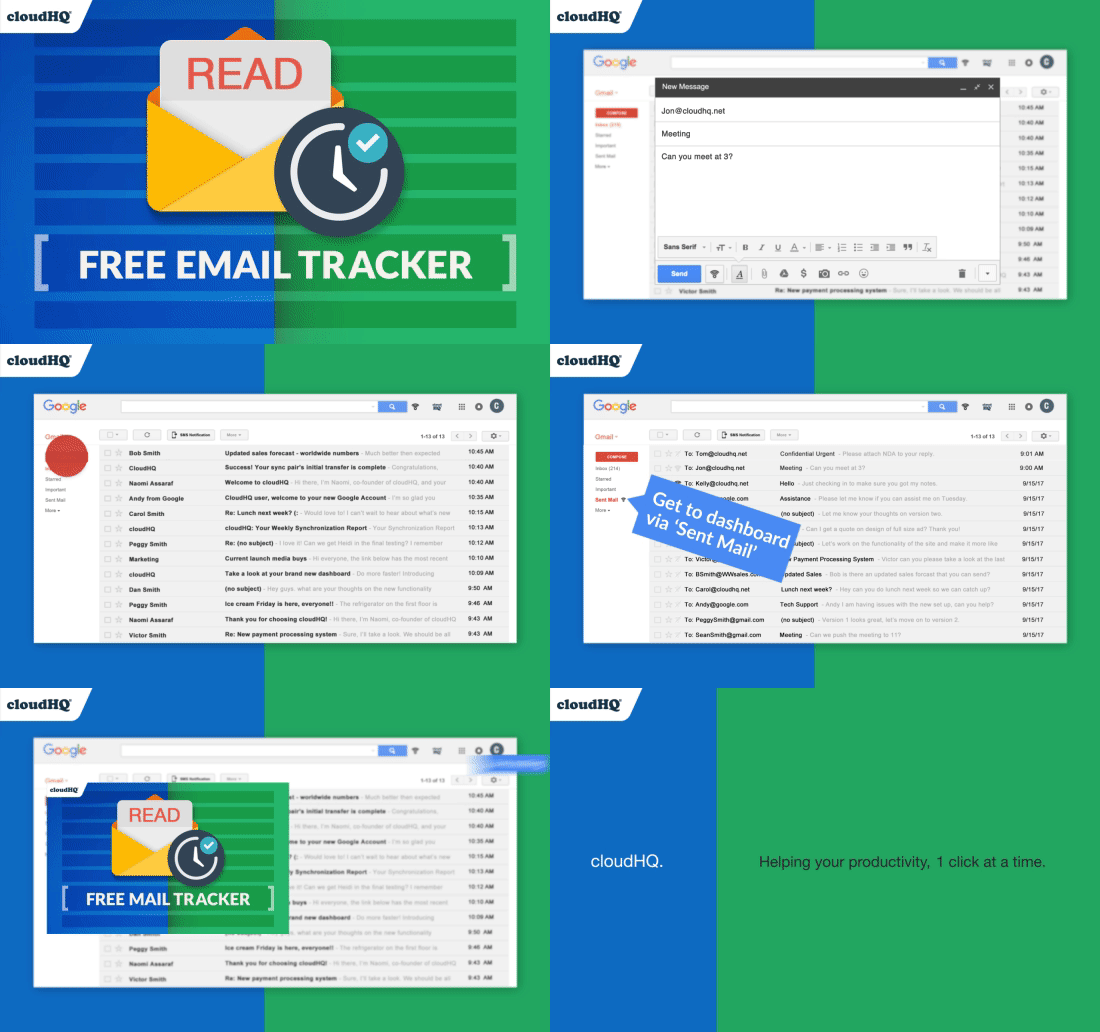
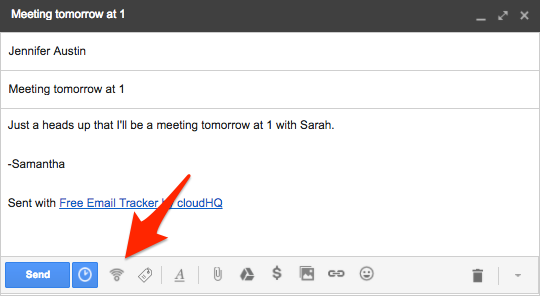
Free Email Tracker is fully integrated with your Gmail. There is no need to actively “turn on” tracking for individual emails. By default, all your emails will be tracked. To turn off tracking for an individual email, simply click the icon in the bottom of the compose message so it turns light gray.

Unlimited email tracking


You have no limits when using our email tracker- whether you’re using the premium, or the free version. This way, you’ll be able to know exactly when a critical sales lead or customer has read your email, and you’ll always be able to take any necessary follow up actions. We spent a lot of time designing a great email tracking experience, and it includes never having to limit you so that you can soar to your fullest potential.

Unlimited link tracking


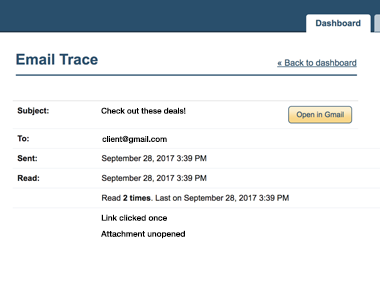
The unlimited link tracking feature is one of several email analytics tools that we offer for free. This tool allows you to know whether your recipient is interested in what you sent them, when you’re email tracking them. You can check when and how many times they opened your link, and be ready to follow up with the best information in hand. If they didn’t click on your link, you know they might not be interested in what you’re sending them.

Dashboard


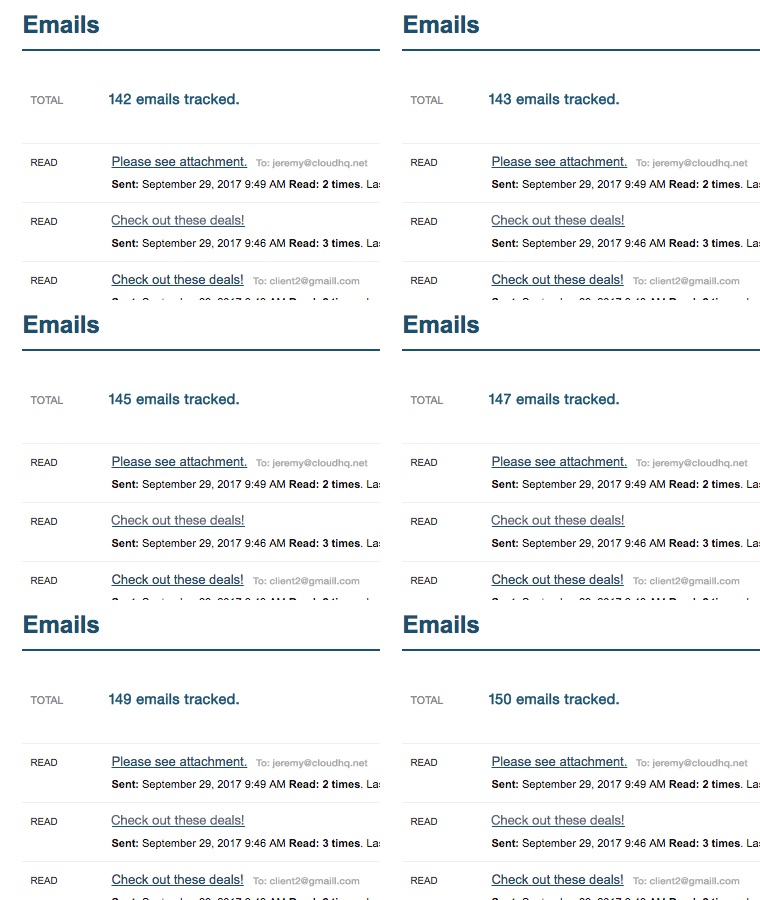
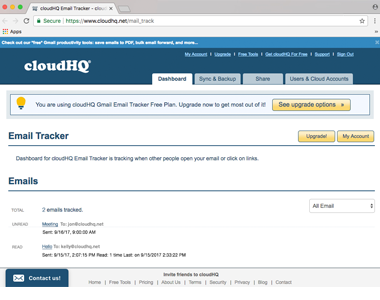
Do you need a high level overview dashboard to see whether or not your emails are being opened? This free dashboard functionality keeps a record of all your emails sent with Free Email Tracker. You can check the history of your tracked emails in one, convenient place. Filter all your messages that haven’t been opened, and you’ll be able to know what actions to take next. Click the “read emails” option, and you’ll know which of your contacts are taking you seriously.

Multiple Email Recipients Tracking


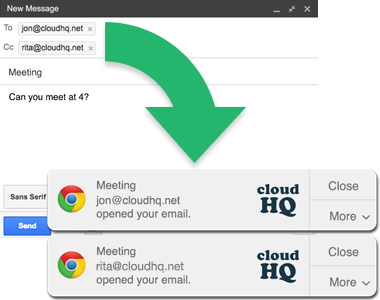
Free Email Tracker will also track multiple email recipients when you include more than one email address in your email. You can send your email with blind copies, copies, or multiple address in the “To” field, and still track if they opened your message, and clicked on any of your links.

Real-time Desktop Notifications


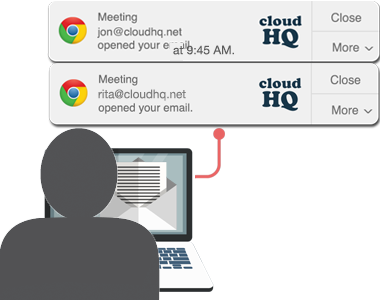
Desktop notifications for email tracking are designed to alert you in real-time as soon as your tracked messages have been opened while you’re on a desktop computer. They’ll pop-up from your taskbar just like Gmail’s new message alert. Because notifications are shown in real time, you’ll have the ultimate upper hand.

Text Notifications


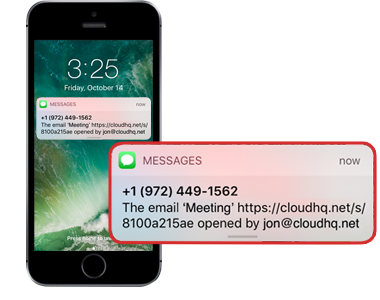
What if you’re not at your computer? Not to worry. Now, you can even setup SMS text notifications whenever your email is opened. This is a great option for your most important messages, so that you can take action immediately after your email recipient reads it. This is a must-have feature for any sales professional and immensely ups your sales game

Tracking History


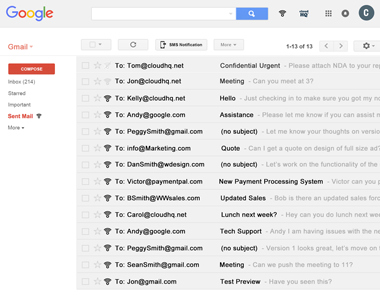
You can check the history of your tracked emails in one place. Filter all the messages that haven’t been opened and know what to do next. Click the “read emails” option and make sure you know who are the contacts that opened what you sent. Using the filtering, you can see a full history of your communications with specific prospects as well as their history of how they interact with your messages.

Reminders


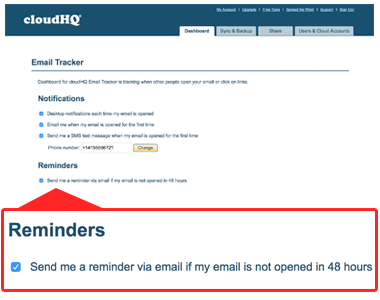
With reminders, you can receive a notification if your email goes unopened for 48 hours. This gives you a heads up that the email you're using didn’t reach your intended recipient. It could be that the recipient is busy, is away, or worse, is ignoring your emails. Whatever the case, an email notification will alert you that your message has NOT been read. This knowledge lets you take the next appropriate steps because your current email recipient may not be your best point of contact.

Who Uses Tracking?

Sales

Receive a notification when your proposal is viewed, and you’ll know exactly when to follow up. Know if your email is read and not responded to, or never reaches the recipient.

Support

Know if your support message has resolved an issue or if the contact hasn’t yet read your helpful message.

Marketing

Send test emails and track which emails are being opened and which are converting - and see how effective your marketing materials actually are.

Recruiters


Respond to candidates at the right time to nurture their interest and without appearing overzealous by replying too often.


Project Managers

Ensure that all project stakeholders read your important emails - and quickly follow up if they are not read 

Lawyers

Ensure that your clients read your email requesting needed documents